
Needle MCP Server
One of the best ways to use Needle, is via its MCP Server.
Model Connection Protocol (MCP) standardizes the way LLMs connect to external data sources.
You can use Needle MCP Server to easily enable semantic search tools in your AI applications. Making the data buried in PDFs, DOCX, XLXS, and other files instantly accessible by LLMs.
Getting Started
You can either 1. use our remote MCP server (recommended) or 2. run the server on your own machine.
1. Using remote MCP server
We provide two endpoints for you to use:
- SSE: https://mcp.needle.app/sse
- Streamable HTTP: https://mcp.needle.app/mcp (recommended)
Please note that MCP deprecated SSE endpoints in the latest specification, therefore newer MCP clients should prefer using Streamable HTTP endpoint.
We require API keys to authenticate requests to our MCP server. Simply set the following request header in your requests:
"Authorization": "Bearer <your_needle_api_key>"You can obtain your API key from the Needle Settings. Here is how you can activate the MCP server in different clients.

Claude Desktop Config (Remote Server)
Prerequisite: Node.js and npx
To use the Needle MCP Server in Claude Desktop you must first install Node.js and npx. Follow the official installation guide here.
Once done, verify that you have npx installed by running npx --version.
We're ready for the configuration. Start Claude Desktop and open the Settings > Developer Settings > Edit Config. You will see a JSON file where you can add all your MCP servers.
Add the following configuration to your claude_desktop_config.json file for Needle MCP Server.
{
  "mcpServers": {
    "needle": {
      "command": "npx",
      "args": [
        "mcp-remote",
        "https://mcp.needle.app/mcp",
        "--header",
        "Authorization:Bearer ${NEEDLE_API_KEY}"
      ],
      "env": {
        "NEEDLE_API_KEY": "<your-needle-api-key>"
      }
    }
  }
}
After this configuration, restart your Claude Desktop client and you should be able to use Needle MCP server like below.
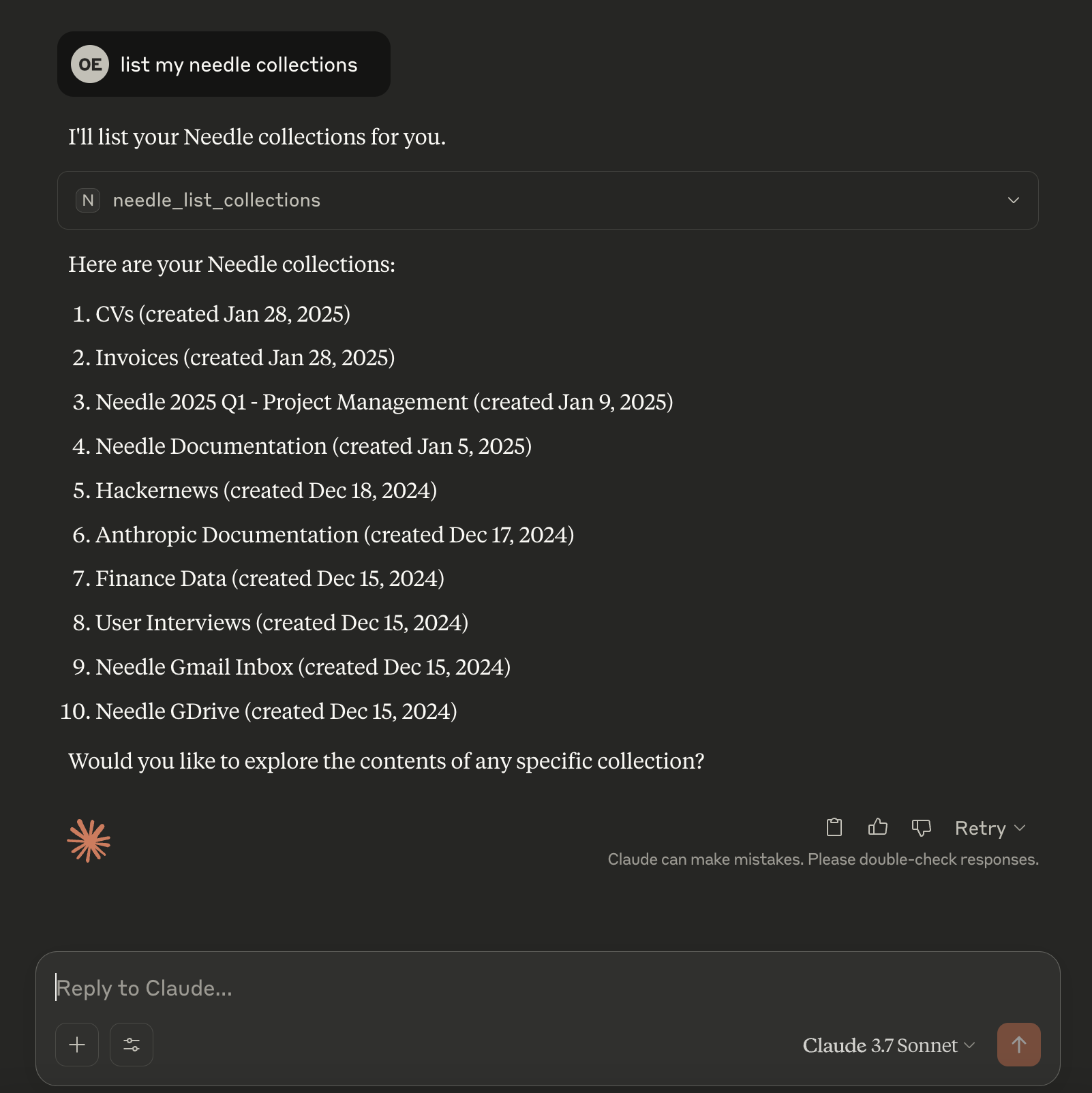
Using Needle MCP server in Claude Desktop.
Cursor Config (Remote Server)
Prerequisite: Node.js and npm
Like Claude Desktop, you need to install Node.js and npx to use the Needle MCP Server in Cursor. Install and verify that you have npx installed by running npx --version.
Note that configuration for Cursor is slightly different than Claude Desktop.
You need to set the NEEDLE_AUTH_HEADER environment variable instead of NEEDLE_API_KEY due to the difference in how Cursor handles environment variables.
{
  "mcpServers": {
    "needle": {
      "command": "npx",
      "args": [
        "mcp-remote",
        "https://mcp.needle.app/mcp",
        "--header",
        "Authorization:${NEEDLE_AUTH_HEADER}"
      ],
      "env": {
        "NEEDLE_AUTH_HEADER": "Bearer <your-needle-api-key>"
      }
    }
  }
}
Programmatic Use (Remote Server)
You can also use the MCP server programmatically. See the example below based on MCP's official TypeScript SDK.
In the code below, we make sure to set the Authorization headers in all requests we're sending to the MCP server.
import { Client } from "@modelcontextprotocol/sdk/client/index.js";
import { StreamableHTTPClientTransport } from "@modelcontextprotocol/sdk/client/http.js";

const client = new Client({ name: "my-client", version: "1.0.0" });

const transport = new StreamableHTTPClientTransport(
  new URL("https://mcp.needle.app/mcp"), // using Streamable HTTP endpoint
  {
    requestInit: {
      headers: {
        Authorization: "Bearer <your-needle-api-key>",
      },
    },
  },
);

await client.connect(transport);
await client.listTools();
await client.close();
Deprecated SSE endpoint is still available you can use it as the following example.
import { Client } from "@modelcontextprotocol/sdk/client/index.js";
import { SSEClientTransport } from "@modelcontextprotocol/sdk/client/sse.js";

const client = new Client({ name: "my-client", version: "1.0.0" });

const transport = new SSEClientTransport(
  new URL("https://mcp.needle.app/sse"), // using SSE endpoint
  {
    eventSourceInit: {
      fetch: async (url, init) => {
        const modifiedInit = {
          ...init,
          headers: {
            ...init?.headers,
            Authorization: "Bearer <your-needle-api-key>",
          },
        };
        return fetch(url, modifiedInit);
      },
      requestInit: {
        headers: {
          Authorization: "Bearer <your-needle-api-key>",
        },
      },
    },
  },
);

await client.connect(transport);
await client.listTools();
await client.close();
Similarly and as recommended by MCP, you can use the Streamable HTTP endpoint.
2. Running local MCP server

Although we recommend using our remote MCP server, you can also run the server on your own machine.
This server relies on STDIO transport to communicate with the client.
Download our server application source from GitHub: needle-ai/needle-mcp.
git clone https://github.com/needle-ai/needle-mcp.gitThis server is written in Python therefore you must make sure, you have uv installed on your machine to run it.
See uv installation guide for more information.
Claude Desktop Config (Local Server)
{
  "mcpServers": {
    "needle": {
      "command": "uv",
      "args": ["--directory", "/path/to/needle-mcp", "run", "needle-mcp"],
      "env": {
        "NEEDLE_API_KEY": "<your-needle-api-key>"
      }
    }
  }
}
Cursor Config (Local Server)
Open the Cursor Settings > MCP and modify the config file. Changes are identical to the Claude Desktop config.
{
  "mcpServers": {
    "needle": {
      "command": "uv",
      "args": ["--directory", "/path/to/needle-mcp", "run", "needle-mcp"],
      "env": {
        "NEEDLE_API_KEY": "<your-needle-api-key>"
      }
    }
  }
}
Troubleshooting
If not working:
- Make sure
uvis installed globally. - Or find
uvpath withwhich uvand replace"command": "uv"with the full path. - Verify your Needle API key is correct.
- Check if the
needle-mcppath in config matches your actual project location.
Support
If you have any questions or need help with the integration, feel free to:
- Visit our GitHub repository
- Join our Discord community
Video Demo: Building AI Agents with Needle MCP
Watch this video to see Needle MCP in action:
This demonstration shows how to:
- Set up the Needle MCP server with Claude Desktop
- Create and manage collections
- Perform natural language searches
- Use knowledge threading for enhanced document retrieval
Tools Reference
We've prepared a list of tools that you can use in your applications. See below JSON schema for each tool.
1. needle_list_collections
{
  "name": "needle_list_collections",
  "description": "List Needle collections",
  "inputSchema": {
    "type": "object"
  },
  "annotations": {}
}
2. needle_get_collection
{
  "name": "needle_get_collection",
  "description": "Get details about a specific Needle collection.",
  "inputSchema": {
    "type": "object",
    "properties": {
      "collection_id": {
        "type": "string",
        "description": "The ID of the collection to get."
      }
    },
    "required": [
      "collection_id"
    ],
    "additionalProperties": false,
    "$schema": "http://json-schema.org/draft-07/schema#"
  }
}
3. needle_get_collection_stats
{
  "name": "needle_get_collection_stats",
  "description": "Get statistics about a specific Needle collection.",
  "inputSchema": {
    "type": "object",
    "properties": {
      "collection_id": {
        "type": "string",
        "description": "The ID of the collection to get stats for."
      }
    },
    "required": [
      "collection_id"
    ],
    "additionalProperties": false,
    "$schema": "http://json-schema.org/draft-07/schema#"
  }
}
4. needle_list_collection_files
{
  "name": "needle_list_collection_files",
  "description": "List files in a specific Needle collection. Returns maximum of 100 results.",
  "inputSchema": {
    "type": "object",
    "properties": {
      "collection_id": {
        "type": "string",
        "description": "The ID of the collection to list files for."
      },
      "offset": {
        "type": "number",
        "description": "The offset to start listing from."
      }
    },
    "required": [
      "collection_id",
      "offset"
    ],
    "additionalProperties": false,
    "$schema": "http://json-schema.org/draft-07/schema#"
  }
}
5. needle_add_file_to_collection
{
  "name": "needle_add_file_to_collection",
  "description": "Add a file to a specific Needle collection.",
  "inputSchema": {
    "type": "object",
    "properties": {
      "collection_id": {
        "type": "string",
        "description": "The ID of the collection to add a file to."
      },
      "name": {
        "type": "string",
        "description": "The name of the file to add."
      },
      "url": {
        "type": "string",
        "description": "The URL of the file to add."
      }
    },
    "required": [
      "collection_id",
      "name",
      "url"
    ],
    "additionalProperties": false,
    "$schema": "http://json-schema.org/draft-07/schema#"
  }
}
6. needle_delete_file_from_collection
{
  "name": "needle_delete_file_from_collection",
  "description": "Delete a file from a specific Needle collection.",
  "inputSchema": {
    "type": "object",
    "properties": {
      "collection_id": {
        "type": "string",
        "description": "The ID of the collection to delete a file from."
      },
      "file_id": {
        "type": "string",
        "description": "The ID of the file to delete."
      }
    },
    "required": [
      "collection_id",
      "file_id"
    ],
    "additionalProperties": false,
    "$schema": "http://json-schema.org/draft-07/schema#"
  }
}
7. needle_search_collection
{
  "name": "needle_search_collection",
  "description": "Perform a semantic search on a specific Needle collection. Returns maximum of 10 results.",
  "inputSchema": {
    "type": "object",
    "properties": {
      "collection_id": {
        "type": "string",
        "description": "The ID of the collection to search."
      },
      "query": {
        "type": "string",
        "description": "The query to search for."
      },
      "offset": {
        "type": "number",
        "description": "The offset to start searching from."
      }
    },
    "required": [
      "collection_id",
      "query",
      "offset"
    ],
    "additionalProperties": false,
    "$schema": "http://json-schema.org/draft-07/schema#"
  }
}
8. needle_create_collection
{
  "name": "needle_create_collection",
  "description": "Create a new Needle collection",
  "inputSchema": {
    "type": "object",
    "properties": {
      "name": {
        "type": "string",
        "description": "The name of the collection to create."
      }
    },
    "required": [
      "name"
    ],
    "additionalProperties": false,
    "$schema": "http://json-schema.org/draft-07/schema#"
  }
}